> ## Documentation Index
> Fetch the complete documentation index at: https://docs.monobot.ai/llms.txt
> Use this file to discover all available pages before exploring further.
# Call Attached Data
Call Attached Data (CAD) allows you to configure key-value pairs that are attached to calls and passed to downstream integrations and APIs.
CAD fields can be configured in two places:
* **Platform settings** — CAD fields applied across the tenant.
* **Bot configuration** — CAD fields applied only to interactions for the current bot.
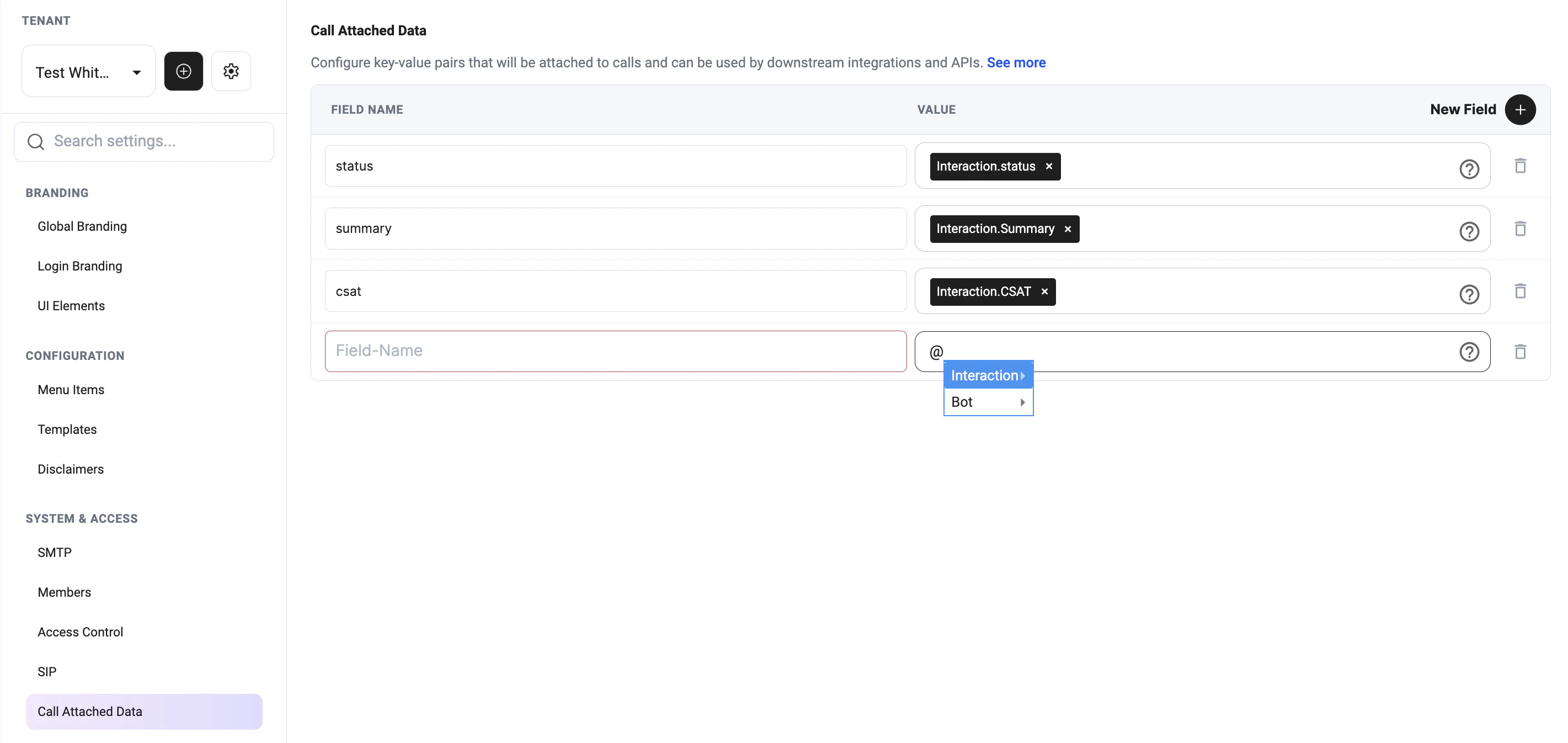
All interactions in this tenant will use the CAD fields configured in Platform settings.
## Platform-level CAD configuration
`Platform Settings → System & Access → Call Attached Data`
 ## Configure CAD for a bot
`Agent Configuration → Integrations → SIP Integration → Call Attached Data`
## Configure CAD for a bot
`Agent Configuration → Integrations → SIP Integration → Call Attached Data`
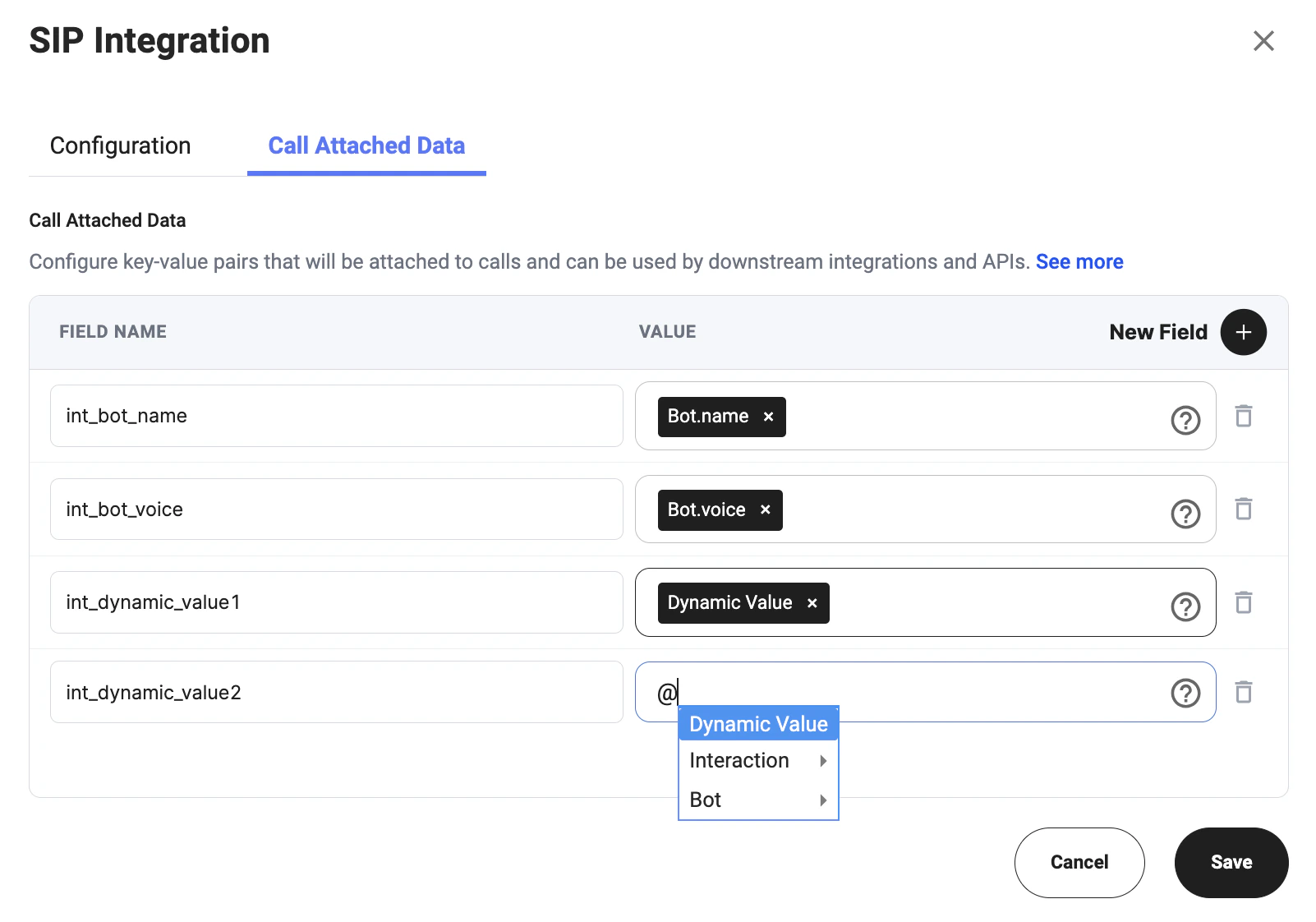 To configure CAD fields for a specific bot:
1. Open **Bot configuration**.
2. Go to **Integrations**.
3. Open **SIP Integration**.
4. Select the **Call Attached Data** tab.
5. Click **New Field**.
6. Add the **Field Name**.
7. Select or enter the **Value**.
8. Click **Save**.
Only interactions in the current bot will use the CAD fields configured in the bot's SIP Integration settings, together with CAD fields from Platform settings.
## Field Name
The **Field Name** is the key that will be sent with the call.
Use clear and consistent names so downstream systems can recognize the data correctly.
Examples:
* `status`
* `summary`
* `csat`
* `int_bot_name`
* `int_bot_voice`
* `int_dynamic_value1`
## Value
The **Value** is the data attached to the field.
You can use available variables from the selector, such as:
* **Interaction** variables
* **Bot** variables
* **Dynamic Value** variables
Examples:
* `Interaction.status`
* `Interaction.Summary`
* `Interaction.CSAT`
* `Bot.name`
* `Bot.voice`
* `Dynamic Value`
## Example
| Field Name | Value |
| --------------- | --------------------- |
| `status` | `Interaction.status` |
| `summary` | `Interaction.Summary` |
| `csat` | `Interaction.CSAT` |
| `int_bot_name` | `Bot.name` |
| `int_bot_voice` | `Bot.voice` |
## Read CAD Fields
Call Attached Data (CAD) fields attached to interactions can be retrieved using API endpoints.
Supported response formats:
* JSON
* XML
***
## Read CAD in JSON Format
```http theme={null}
GET https://platform.monobot.ai/api/chatbot/interactions/{interactionId}/cad
```
To configure CAD fields for a specific bot:
1. Open **Bot configuration**.
2. Go to **Integrations**.
3. Open **SIP Integration**.
4. Select the **Call Attached Data** tab.
5. Click **New Field**.
6. Add the **Field Name**.
7. Select or enter the **Value**.
8. Click **Save**.
Only interactions in the current bot will use the CAD fields configured in the bot's SIP Integration settings, together with CAD fields from Platform settings.
## Field Name
The **Field Name** is the key that will be sent with the call.
Use clear and consistent names so downstream systems can recognize the data correctly.
Examples:
* `status`
* `summary`
* `csat`
* `int_bot_name`
* `int_bot_voice`
* `int_dynamic_value1`
## Value
The **Value** is the data attached to the field.
You can use available variables from the selector, such as:
* **Interaction** variables
* **Bot** variables
* **Dynamic Value** variables
Examples:
* `Interaction.status`
* `Interaction.Summary`
* `Interaction.CSAT`
* `Bot.name`
* `Bot.voice`
* `Dynamic Value`
## Example
| Field Name | Value |
| --------------- | --------------------- |
| `status` | `Interaction.status` |
| `summary` | `Interaction.Summary` |
| `csat` | `Interaction.CSAT` |
| `int_bot_name` | `Bot.name` |
| `int_bot_voice` | `Bot.voice` |
## Read CAD Fields
Call Attached Data (CAD) fields attached to interactions can be retrieved using API endpoints.
Supported response formats:
* JSON
* XML
***
## Read CAD in JSON Format
```http theme={null}
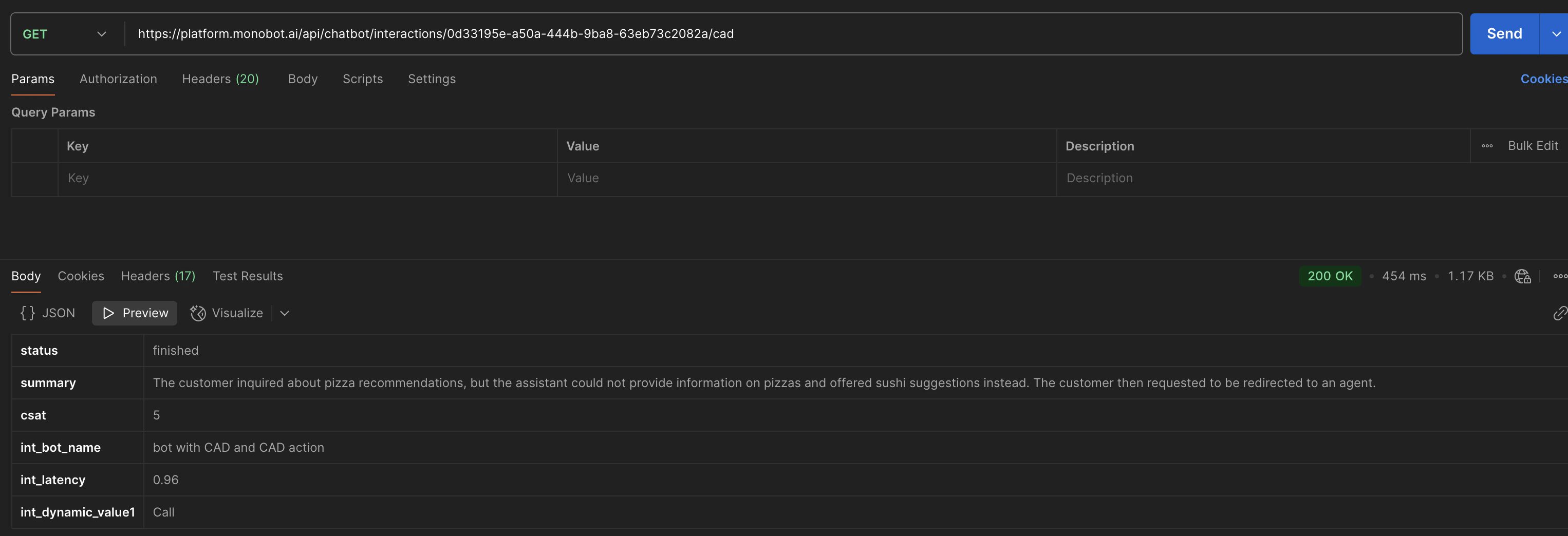
GET https://platform.monobot.ai/api/chatbot/interactions/{interactionId}/cad
```
 ### Path Parameters
| Parameter | Type | Description |
| ------------- | ------ | ------------------------------ |
| interactionId | string | Unique interaction identifier. |
### Response Example
```json theme={null}
{
"status": "finished",
"summary": "The customer requested to be redirected to an agent.",
"csat": 5,
"int_bot_name": "Support Bot",
"int_latency": 0.96
}
```
***
## Read CAD in XML Format
```http theme={null}
POST https://platform.monobot.ai/api/chatbot/interactions/read-cad-by-interaction-id
```
### Path Parameters
| Parameter | Type | Description |
| ------------- | ------ | ------------------------------ |
| interactionId | string | Unique interaction identifier. |
### Response Example
```json theme={null}
{
"status": "finished",
"summary": "The customer requested to be redirected to an agent.",
"csat": 5,
"int_bot_name": "Support Bot",
"int_latency": 0.96
}
```
***
## Read CAD in XML Format
```http theme={null}
POST https://platform.monobot.ai/api/chatbot/interactions/read-cad-by-interaction-id
```
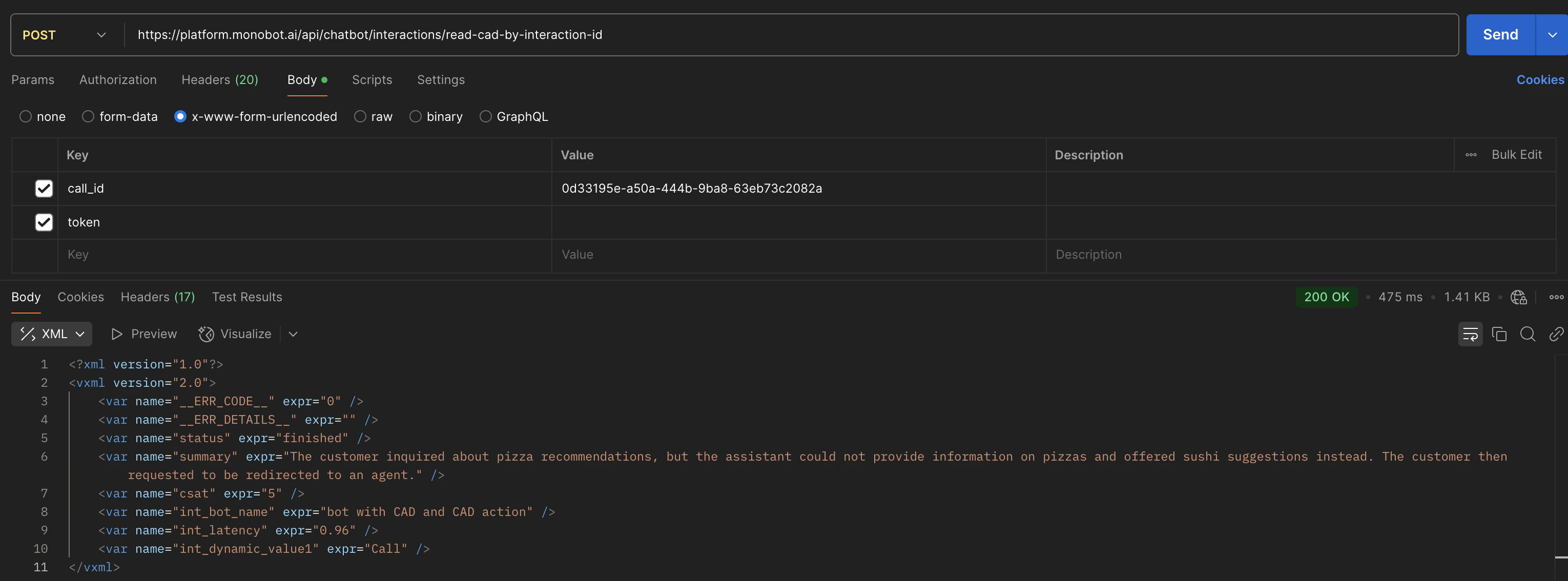 ### Body Parameters
| Parameter | Type | Description |
| --------- | ------ | ------------------------------- |
| call\_id | string | Interaction or call identifier. |
| token | string | Authentication token. |
### Request Format
`x-www-form-urlencoded`
### Response Example
```xml theme={null}
```
***
## Notes
* CAD fields are returned based on interaction-level and bot-level CAD configuration.
* Returned fields may vary between interactions depending on configured dynamic variables.
* JSON format is recommended for API integrations and external systems.
* XML format is primarily used for SIP and telephony workflows.
* Empty or undefined CAD fields may be omitted from the response.
### Body Parameters
| Parameter | Type | Description |
| --------- | ------ | ------------------------------- |
| call\_id | string | Interaction or call identifier. |
| token | string | Authentication token. |
### Request Format
`x-www-form-urlencoded`
### Response Example
```xml theme={null}
```
***
## Notes
* CAD fields are returned based on interaction-level and bot-level CAD configuration.
* Returned fields may vary between interactions depending on configured dynamic variables.
* JSON format is recommended for API integrations and external systems.
* XML format is primarily used for SIP and telephony workflows.
* Empty or undefined CAD fields may be omitted from the response.