> ## Documentation Index
> Fetch the complete documentation index at: https://docs.monobot.ai/llms.txt
> Use this file to discover all available pages before exploring further.
# External SIP Trunk
The **External SIP Trunk** feature allows you to connect third-party telephony providers (e.g., Zadarma) to your AI voice agents.
This enables handling inbound and outbound calls using your own SIP infrastructure instead of built-in telephony services.
***
## Overview
External SIP Trunks are used when:
* you already have a telephony provider
* you want to route calls through your own SIP server
* you need flexibility in call handling and infrastructure
***
## How It Works
1. A phone number is configured on your SIP provider (e.g., Zadarma)
2. Calls are forwarded to your system via SIP (URI)
3. The system processes the call using the assigned AI agent
4. Responses are returned through the same SIP connection
***
## Provider Configuration (Example: Zadarma)
### 1. Open Phone Number Settings
* Navigate to: **Settings → Virtual Phone Number**
* Select your number
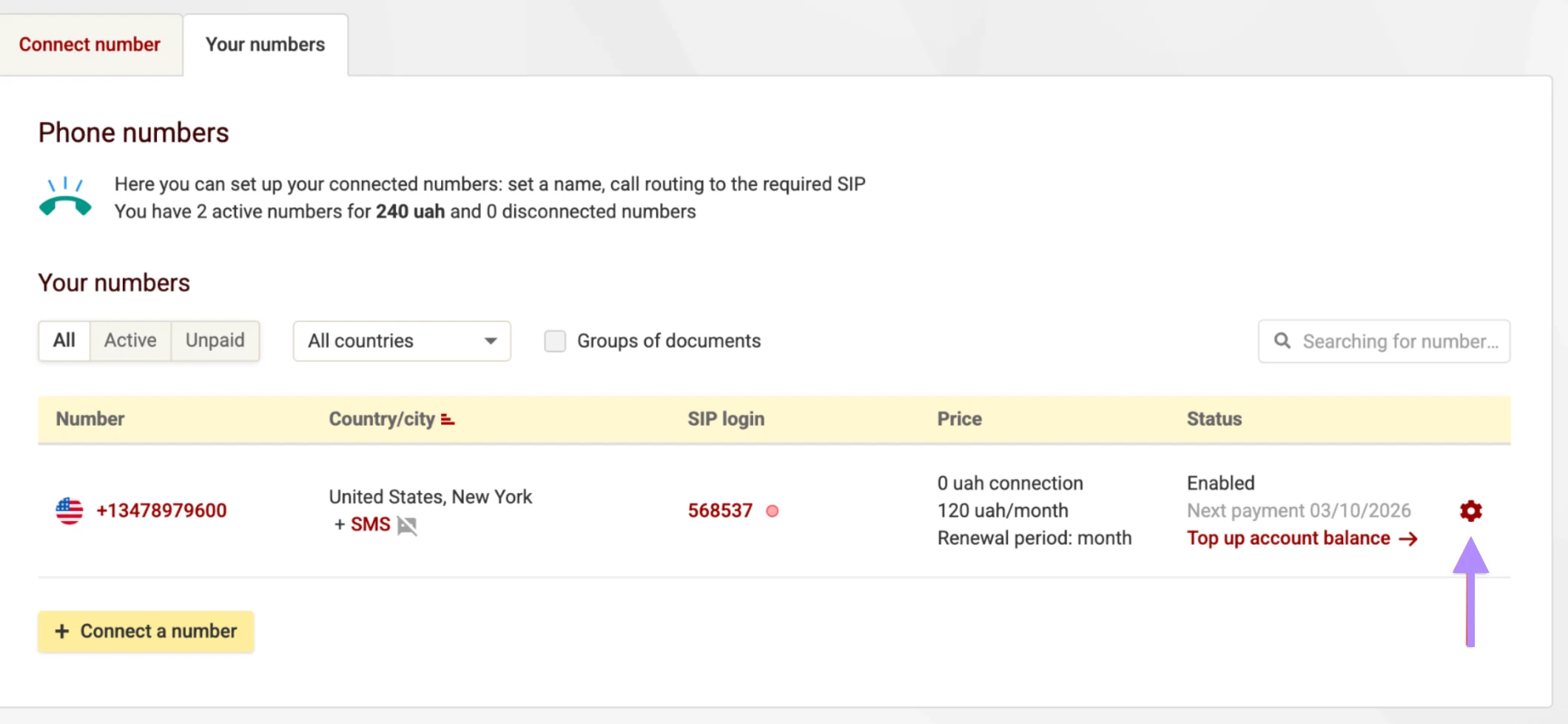 ### 2. Enable External Server (SIP URI)
* Enable **External server (SIP URI)**
* Set the server address in the following format:
```
@:
```
**Example:**
```
13478979600@34.200.57.215:5080
```
**Where:**
* `13478979600` — your phone number
* `34.200.57.215:5080` — your system SIP endpoint
***
## System Configuration
### 3. Create External SIP Trunk
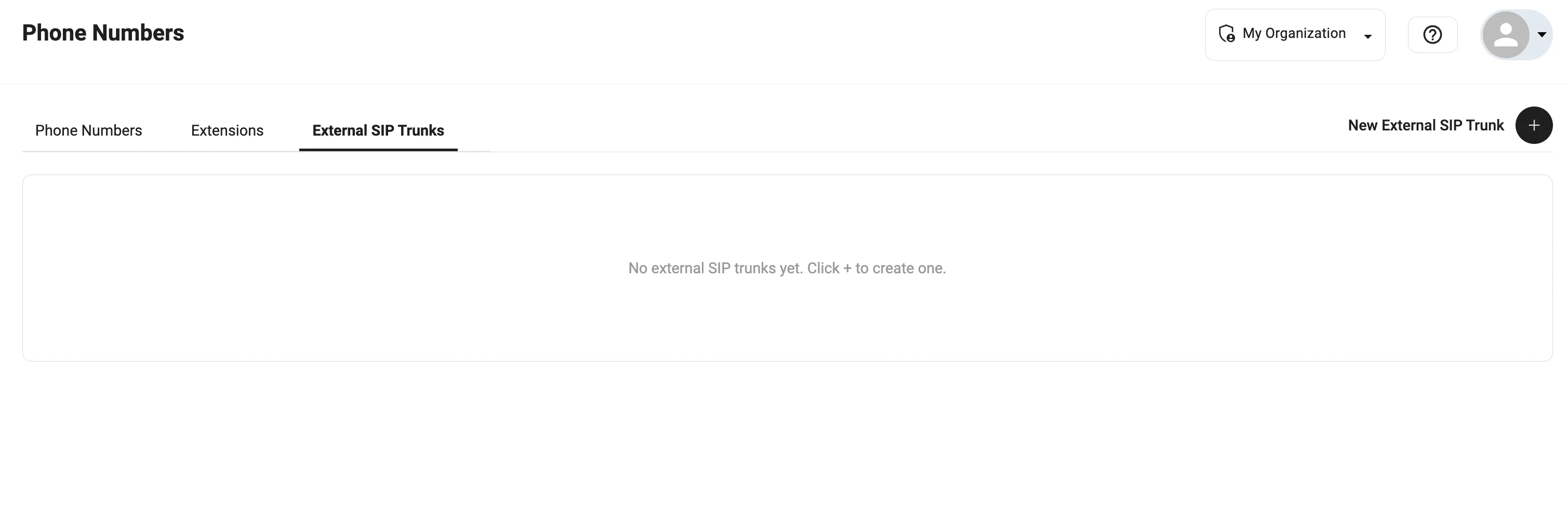
* Navigate to: **Phone Numbers → External SIP Trunks**
* Click **New External SIP Trunk**
### 2. Enable External Server (SIP URI)
* Enable **External server (SIP URI)**
* Set the server address in the following format:
```
@:
```
**Example:**
```
13478979600@34.200.57.215:5080
```
**Where:**
* `13478979600` — your phone number
* `34.200.57.215:5080` — your system SIP endpoint
***
## System Configuration
### 3. Create External SIP Trunk
* Navigate to: **Phone Numbers → External SIP Trunks**
* Click **New External SIP Trunk**
 ### 4. Configure Fields
Fill in the following parameters:
* **Phone Number**\
Phone number from your provider
* **Termination URI**\
SIP endpoint of the provider\
*Example:* `sip.zadarma.com`
* **User Name**\
SIP login from the provider
* **Password**\
SIP password
* **Name**\
Internal label (any convenient name)
* **Enabled**\
Must be turned on
> SIP credentials are provided by your telephony provider.
***
### 5. Create Trunk
Click **Create** to save the configuration.
***
## Assign SIP Trunk to Agent
You can attach the SIP trunk in two ways:
### Option 1 — Agent Settings
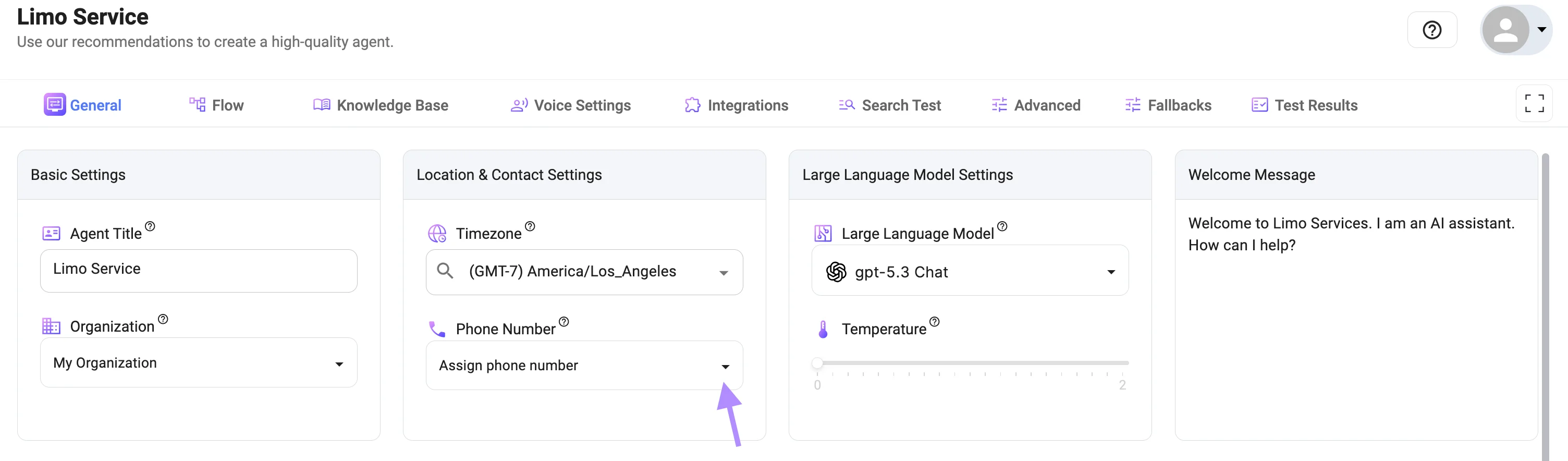
* Open the AI agent configuration ('General' tab)
* Click the **Phone Number** dropdown
* Choose your External SIP Trunk
### 4. Configure Fields
Fill in the following parameters:
* **Phone Number**\
Phone number from your provider
* **Termination URI**\
SIP endpoint of the provider\
*Example:* `sip.zadarma.com`
* **User Name**\
SIP login from the provider
* **Password**\
SIP password
* **Name**\
Internal label (any convenient name)
* **Enabled**\
Must be turned on
> SIP credentials are provided by your telephony provider.
***
### 5. Create Trunk
Click **Create** to save the configuration.
***
## Assign SIP Trunk to Agent
You can attach the SIP trunk in two ways:
### Option 1 — Agent Settings
* Open the AI agent configuration ('General' tab)
* Click the **Phone Number** dropdown
* Choose your External SIP Trunk
 ### Option 2 — Assignment Section
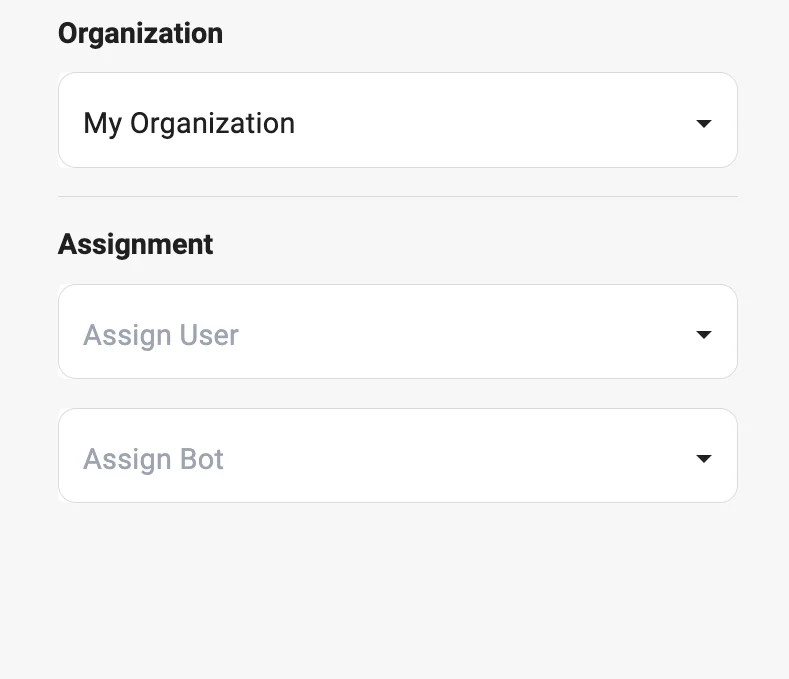
* Navigate to 'Phone numbers' --> 'External SIP Trunks' -- > Open your External SIP Trunk
* Assign an agent from the dropdown
### Option 2 — Assignment Section
* Navigate to 'Phone numbers' --> 'External SIP Trunks' -- > Open your External SIP Trunk
* Assign an agent from the dropdown
 ## Result
Once configured:
* Incoming calls are routed through your SIP provider
* Calls are handled by the assigned AI agent
* Responses are processed in real time
***
## Best Practices
* Ensure SIP credentials are correct
* Verify that your provider allows external routing
* Keep the trunk **enabled**
* Test the setup with a real call
* Use clear and descriptive naming for trunks
***
## Notes
* External SIP Trunks require an active SIP provider
* Incorrect URI or credentials will prevent calls
* Ensure network/firewall allows SIP traffic
***
## Use Cases
* Connecting Zadarma, Twilio SIP, Asterisk
* Using custom VoIP infrastructure
* Enterprise call routing setups
* Multi-provider telephony environments
## Result
Once configured:
* Incoming calls are routed through your SIP provider
* Calls are handled by the assigned AI agent
* Responses are processed in real time
***
## Best Practices
* Ensure SIP credentials are correct
* Verify that your provider allows external routing
* Keep the trunk **enabled**
* Test the setup with a real call
* Use clear and descriptive naming for trunks
***
## Notes
* External SIP Trunks require an active SIP provider
* Incorrect URI or credentials will prevent calls
* Ensure network/firewall allows SIP traffic
***
## Use Cases
* Connecting Zadarma, Twilio SIP, Asterisk
* Using custom VoIP infrastructure
* Enterprise call routing setups
* Multi-provider telephony environments