> ## Documentation Index
> Fetch the complete documentation index at: https://docs.monobot.ai/llms.txt
> Use this file to discover all available pages before exploring further.
# IP Whitelisting
> Restrict SIP access to trusted IP addresses for secure communication.
## Overview
IP Whitelisting is a security feature that controls which IP addresses are allowed to access your SIP endpoint.
This feature is available for **Enterprise plans only**.
***
## How It Works
Whitelisting behavior depends on whether IPs are configured:
* **No IPs added** → all incoming calls are allowed
* **At least one IP added** → only calls from listed IPs are allowed
Once you add an IP address, all non-listed IPs will be blocked.
***
## Why It’s Important
Whitelisting helps protect your system from:
* Unauthorized access
* SIP scanning and attacks
* Toll fraud
***
## Configure IP Whitelisting
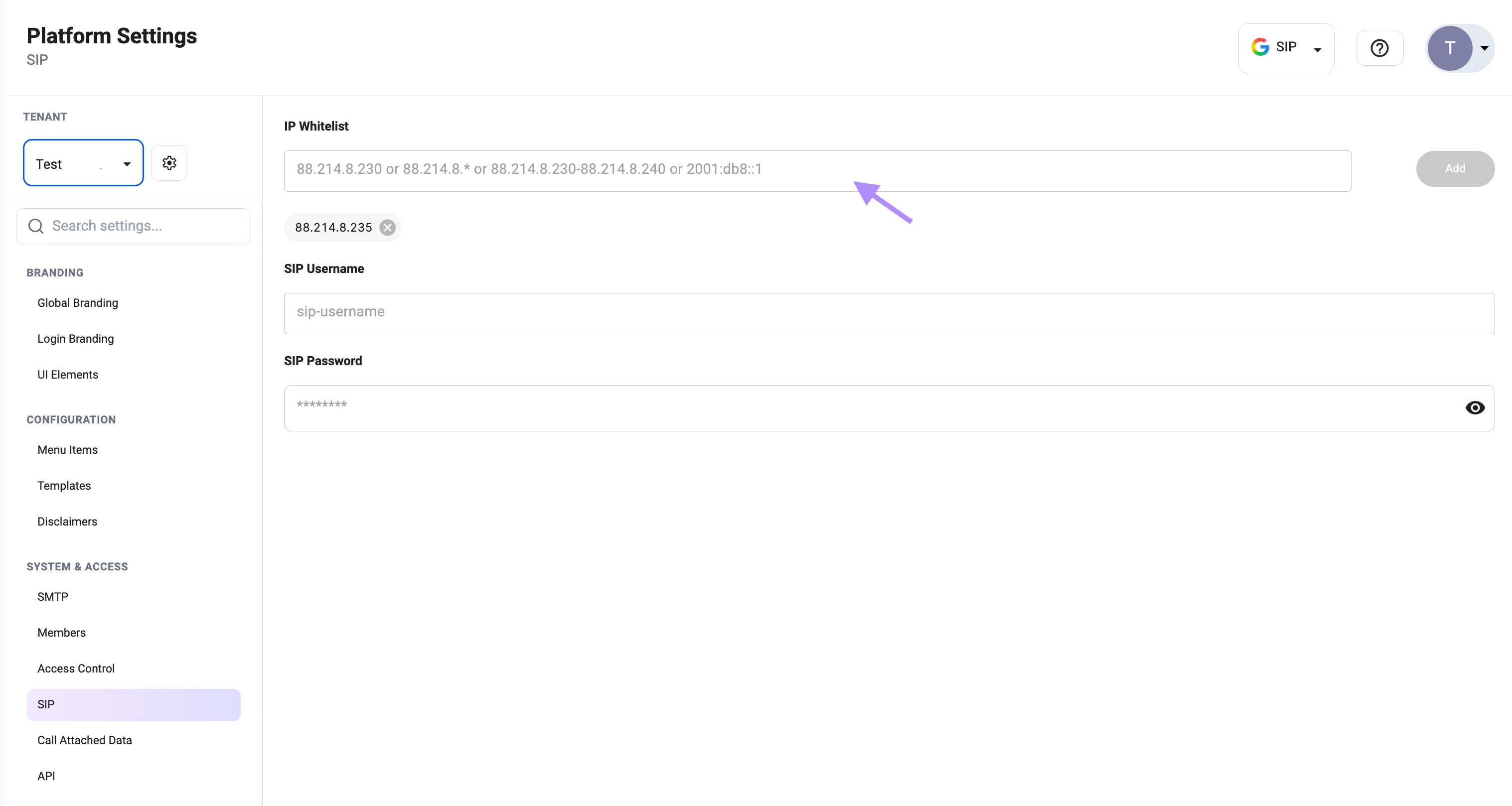 ### 1. Open SIP Settings
1. Click your **Profile icon**
2. Select **Platform Settings**
3. Navigate to **SIP**
***
### 2. Add IP Address
* Enter the desired IP address, range, or pattern
* Click **Add**
Supported formats:
* Single IP: `88.214.8.230`
* Wildcard: `88.214.8.*`
* Range: `88.214.8.230-88.214.8.240`
* IPv6: `2001:db8::1`
***
### 3. Apply Configuration
* Changes take effect immediately after adding IPs
***
## Example
```
No whitelist configured:
→ All incoming calls are accepted
Whitelist configured:
88.214.8.230
→ Only this IP is allowed
→ All others are blocked
```
***
Make sure to whitelist all IP addresses used by your SIP provider or PBX.
### 1. Open SIP Settings
1. Click your **Profile icon**
2. Select **Platform Settings**
3. Navigate to **SIP**
***
### 2. Add IP Address
* Enter the desired IP address, range, or pattern
* Click **Add**
Supported formats:
* Single IP: `88.214.8.230`
* Wildcard: `88.214.8.*`
* Range: `88.214.8.230-88.214.8.240`
* IPv6: `2001:db8::1`
***
### 3. Apply Configuration
* Changes take effect immediately after adding IPs
***
## Example
```
No whitelist configured:
→ All incoming calls are accepted
Whitelist configured:
88.214.8.230
→ Only this IP is allowed
→ All others are blocked
```
***
Make sure to whitelist all IP addresses used by your SIP provider or PBX.