> ## Documentation Index
> Fetch the complete documentation index at: https://docs.monobot.ai/llms.txt
> Use this file to discover all available pages before exploring further.
# Custom Tool
The **Custom Tool** configuration allows you to define how the AI agent interacts with external systems, APIs, or internal logic.
A tool represents an action the agent can execute during a flow, such as retrieving data, sending requests, or performing operations.
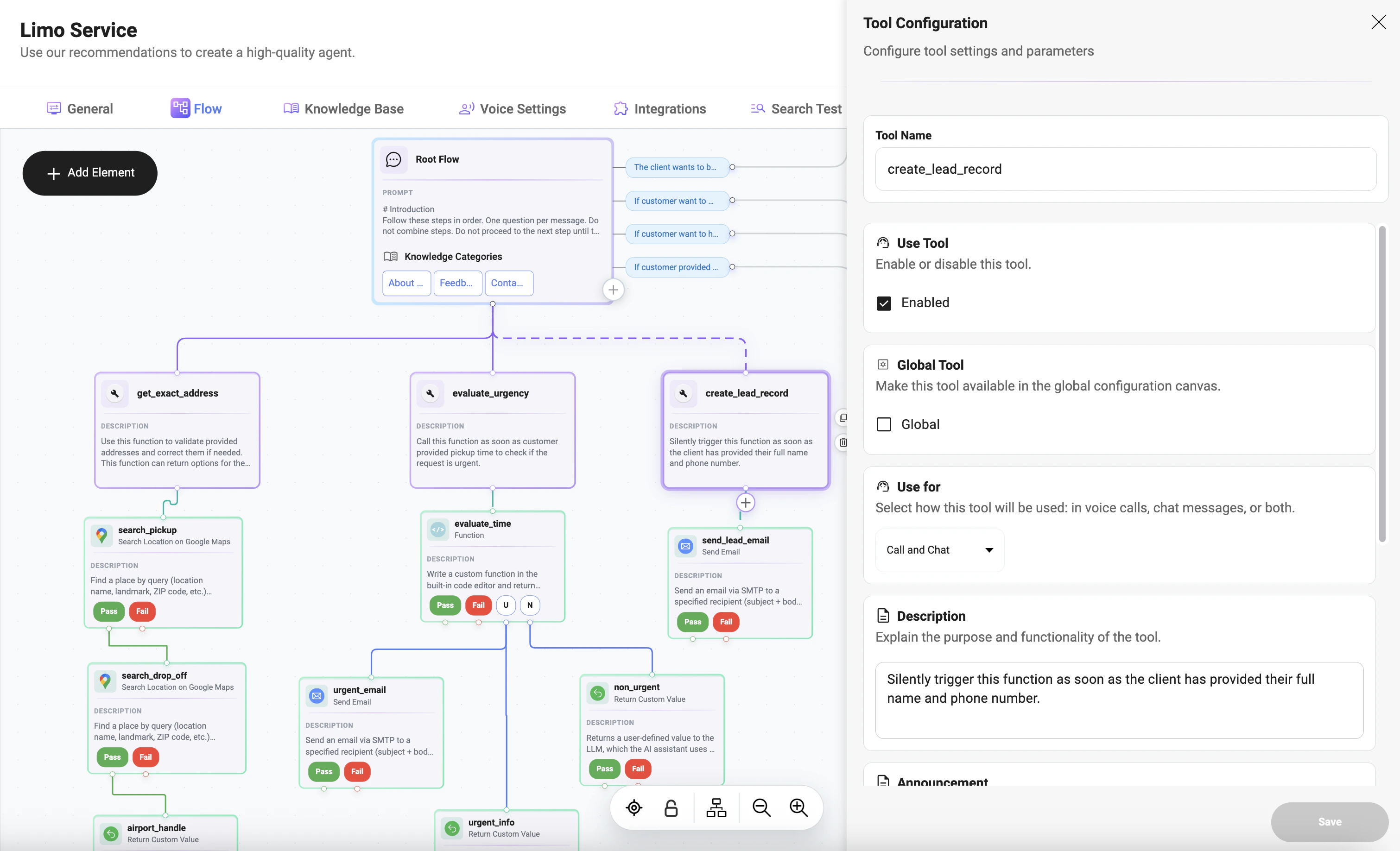 ## Adding a Custom Tool to a Node
Click the **+** button under the node to add a tool.
The tool will be executed based on the node logic and tool configuration. Multiple tools can be added if needed.
## General Configuration
* **Tool Name**:\
Unique identifier used in flows (e.g., `create_lead_record`).
* **Use Tool (Enabled)**:\
Enables or disables execution of the tool.
* **Global Tool**:\
Makes the tool available in the global configuration canvas.
* **Use For**:\
Defines where the tool can be used:
* **Call**
* **Chat**
* **Call and Chat**
***
## Description
Defines **when and how the tool should be triggered**.
This is critical because the system uses this text to understand:
* when to call the tool
* under which conditions it should run
* whether it should be triggered silently or as part of a visible interaction
Example:
```text theme={null}
Silently trigger this function as soon as the client has provided their full name and phone number.
```
***
## Announcement
The **Announcement** is a message shown to the user before the tool is executed.
Example:
```text theme={null}
Let me check that for you.
```
***
## Parameters
Parameters define the values the tool will use during execution.
Each parameter represents a piece of data passed into the tool.
### Parameter Fields
* **Name**:\
Parameter key used in the request (e.g., `name`, `pickup_location`)
* **Description**:\
Explains what the parameter represents.
Examples:
```text theme={null}
Client's name.
Pickup location address or place where the ride should start.
```
* **Possible Values**:\
Defines allowed values for the parameter.\
Values should be provided as a comma-separated list (e.g., `SEDAN, SUV, VAN`).\
This acts like an enum and helps guide valid inputs.
* **Required**:\
Indicates whether the parameter must be collected before the tool can be executed.\
If enabled, the system will ensure the value is provided before triggering the tool.
***
## Using Values Collected in a Node
Tool parameters can use values collected during node execution:
* first name
* last name
* phone number
* email
* addresses
* other user-provided data
***
## Tool Usage in Nodes
Tools are assigned to nodes.
* One node can trigger one or multiple tools
* Tools use data collected in the node
***
## Execution Flow
1. Node is reached
2. Parameters are checked
3. Missing data collected
4. Announcement (optional)
5. Tool executes
6. Result used in flow
***
## Notes
* Tools depend on node data
* Parameters connect user input with actions
## Adding a Custom Tool to a Node
Click the **+** button under the node to add a tool.
The tool will be executed based on the node logic and tool configuration. Multiple tools can be added if needed.
## General Configuration
* **Tool Name**:\
Unique identifier used in flows (e.g., `create_lead_record`).
* **Use Tool (Enabled)**:\
Enables or disables execution of the tool.
* **Global Tool**:\
Makes the tool available in the global configuration canvas.
* **Use For**:\
Defines where the tool can be used:
* **Call**
* **Chat**
* **Call and Chat**
***
## Description
Defines **when and how the tool should be triggered**.
This is critical because the system uses this text to understand:
* when to call the tool
* under which conditions it should run
* whether it should be triggered silently or as part of a visible interaction
Example:
```text theme={null}
Silently trigger this function as soon as the client has provided their full name and phone number.
```
***
## Announcement
The **Announcement** is a message shown to the user before the tool is executed.
Example:
```text theme={null}
Let me check that for you.
```
***
## Parameters
Parameters define the values the tool will use during execution.
Each parameter represents a piece of data passed into the tool.
### Parameter Fields
* **Name**:\
Parameter key used in the request (e.g., `name`, `pickup_location`)
* **Description**:\
Explains what the parameter represents.
Examples:
```text theme={null}
Client's name.
Pickup location address or place where the ride should start.
```
* **Possible Values**:\
Defines allowed values for the parameter.\
Values should be provided as a comma-separated list (e.g., `SEDAN, SUV, VAN`).\
This acts like an enum and helps guide valid inputs.
* **Required**:\
Indicates whether the parameter must be collected before the tool can be executed.\
If enabled, the system will ensure the value is provided before triggering the tool.
***
## Using Values Collected in a Node
Tool parameters can use values collected during node execution:
* first name
* last name
* phone number
* email
* addresses
* other user-provided data
***
## Tool Usage in Nodes
Tools are assigned to nodes.
* One node can trigger one or multiple tools
* Tools use data collected in the node
***
## Execution Flow
1. Node is reached
2. Parameters are checked
3. Missing data collected
4. Announcement (optional)
5. Tool executes
6. Result used in flow
***
## Notes
* Tools depend on node data
* Parameters connect user input with actions