> ## Documentation Index
> Fetch the complete documentation index at: https://docs.monobot.ai/llms.txt
> Use this file to discover all available pages before exploring further.
# Knowledge Base
The **Knowledge Base** tab allows you to manage structured data sources used by your AI agent to generate accurate and context-aware responses.
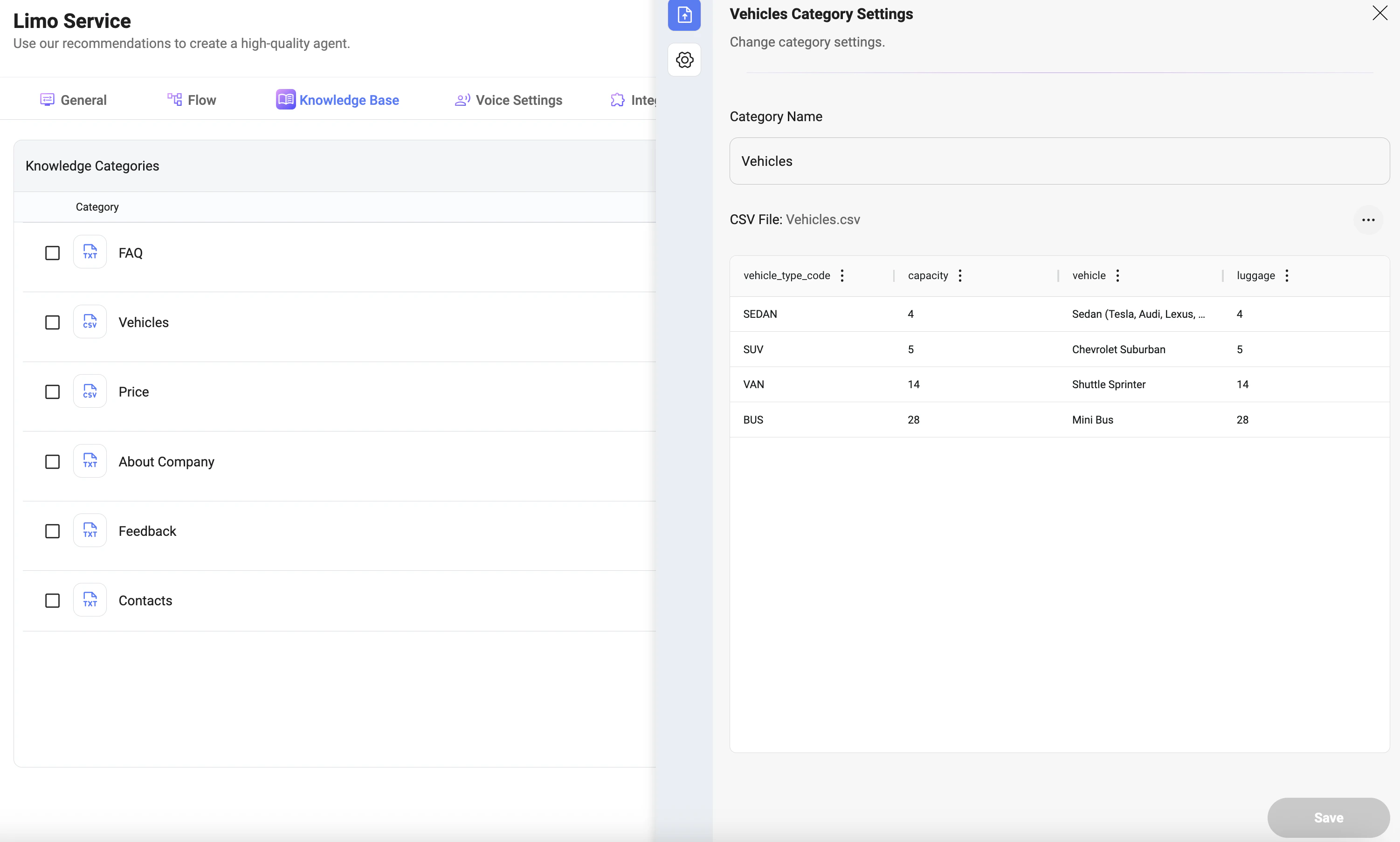 ## Knowledge Categories
* **Knowledge Categories**: Organize information into separate categories (e.g., FAQ, Vehicles, Pricing).
* Each category represents a specific type of data the agent can use during conversations.
* Categories can contain structured or unstructured data.
### Creating a Category
* Enter a name in **Category Name**.
* Click to create the category.
* Add files to the category using supported formats.
***
## Supported File Types
You can create or upload different types of files depending on your use case:
* **CSV**: Structured data (e.g., pricing tables, vehicles, services).
* **TXT**: Plain text content (e.g., FAQs, company info, policies).
* **JSON**: Structured data with flexible schema for advanced use cases.
* **Web Page**: Import content directly from a URL.
* **PDF (upload only)**: Documents such as manuals or policies.
### Importing Files
* Drag and drop files into the upload area or click to upload.
* Supported formats: **PDF, JSON, TXT, CSV**.
* Maximum file size: **50MB**.
***
## Preview Data
* **Preview Data** allows you to view the uploaded content inside a category.
* For **CSV files**, data is displayed in a table format (rows and columns).
* For **text-based files**, content is shown as plain text.
Use this section to:
* Verify that data is uploaded correctly
* Check column structure and values
* Ensure formatting is clean and usable by the agent
***
## Instructions
* **Instructions** define how the agent should interpret and use data from this category.
* You can provide additional guidance to improve how the model retrieves and responds with this data.
Examples:
* Explain what the data represents (e.g., “This file contains vehicle types and capacity”)
* Add constraints (e.g., “Use only exact matches for vehicle type”)
* Guide response formatting (e.g., “Always include capacity and luggage in the answer”)
This helps improve accuracy and reduces incorrect interpretations.
***
## Category Configuration
* **Category Name**: Defines how the category is labeled and referenced inside the agent.
* **Data Source**: Upload and manage files associated with the category.
* **CSV Structure**:
* Columns represent attributes (e.g., vehicle type, capacity, luggage)
* Rows represent individual records
* Used for precise lookups and filtering
***
## Advanced Category & Document Settings
The Knowledge Base provides additional configuration options to fine-tune how data is processed and retrieved.
## Knowledge Categories
* **Knowledge Categories**: Organize information into separate categories (e.g., FAQ, Vehicles, Pricing).
* Each category represents a specific type of data the agent can use during conversations.
* Categories can contain structured or unstructured data.
### Creating a Category
* Enter a name in **Category Name**.
* Click to create the category.
* Add files to the category using supported formats.
***
## Supported File Types
You can create or upload different types of files depending on your use case:
* **CSV**: Structured data (e.g., pricing tables, vehicles, services).
* **TXT**: Plain text content (e.g., FAQs, company info, policies).
* **JSON**: Structured data with flexible schema for advanced use cases.
* **Web Page**: Import content directly from a URL.
* **PDF (upload only)**: Documents such as manuals or policies.
### Importing Files
* Drag and drop files into the upload area or click to upload.
* Supported formats: **PDF, JSON, TXT, CSV**.
* Maximum file size: **50MB**.
***
## Preview Data
* **Preview Data** allows you to view the uploaded content inside a category.
* For **CSV files**, data is displayed in a table format (rows and columns).
* For **text-based files**, content is shown as plain text.
Use this section to:
* Verify that data is uploaded correctly
* Check column structure and values
* Ensure formatting is clean and usable by the agent
***
## Instructions
* **Instructions** define how the agent should interpret and use data from this category.
* You can provide additional guidance to improve how the model retrieves and responds with this data.
Examples:
* Explain what the data represents (e.g., “This file contains vehicle types and capacity”)
* Add constraints (e.g., “Use only exact matches for vehicle type”)
* Guide response formatting (e.g., “Always include capacity and luggage in the answer”)
This helps improve accuracy and reduces incorrect interpretations.
***
## Category Configuration
* **Category Name**: Defines how the category is labeled and referenced inside the agent.
* **Data Source**: Upload and manage files associated with the category.
* **CSV Structure**:
* Columns represent attributes (e.g., vehicle type, capacity, luggage)
* Rows represent individual records
* Used for precise lookups and filtering
***
## Advanced Category & Document Settings
The Knowledge Base provides additional configuration options to fine-tune how data is processed and retrieved.
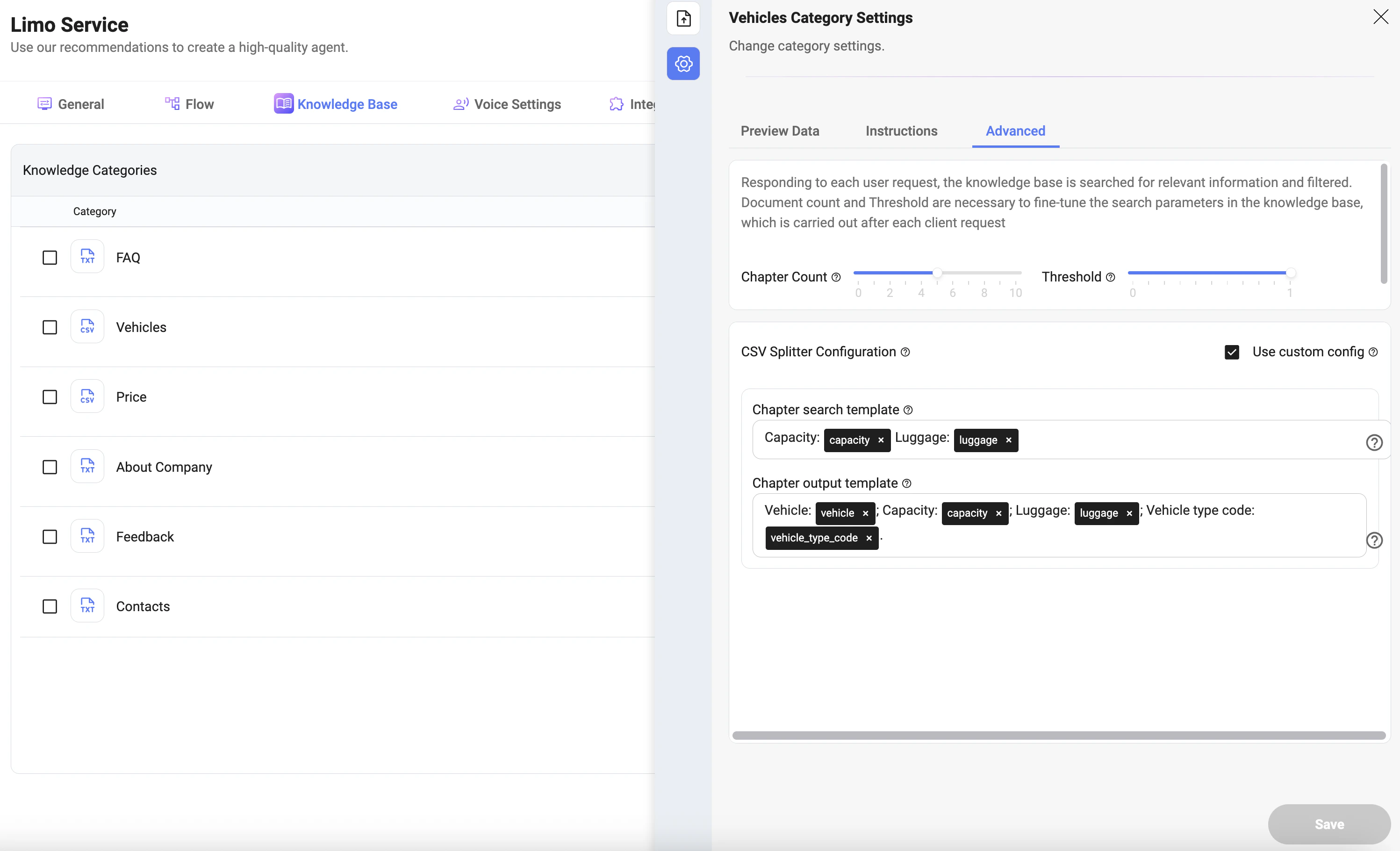 ### Search Configuration
* **Chapter Count**:\
Defines how many relevant data chunks are returned per request.\
Higher values increase context but may introduce noise.
* **Threshold**:\
Controls how strictly results are filtered by relevance.\
Higher = stricter matching (more precise results), lower = broader results (less strict).
***
### CSV Splitter Configuration
Used to control how structured data (CSV) is interpreted and returned.
* **Use Custom Config**:\
Enables manual control over how CSV data is processed.
#### Chapter Search Template
* Defines which fields are used to **search and match** data.
* Example:
* Capacity
* Luggage
These fields are used to filter and find relevant records.
#### Chapter Output Template
* Defines how the data is **formatted and returned** to the model.
* Example:
* Vehicle
* Capacity
* Luggage
* Vehicle type code
This controls what the agent receives and uses in responses.
***
## How It Works
* User sends a request
* The system searches the Knowledge Base
* Data is filtered using **Threshold**
* Top results are selected using **Chapter Count**
* CSV data is processed using **Search Template**
* Final output is formatted using **Output Template**
***
## Best Practices
* Use **CSV or JSON** for structured, filterable data.
* Use **TXT or PDF** for descriptive content.
* Keep categories **focused and well-organized**.
* Use **Chapter Count (1–3)** for precise results.
* Use **Threshold (0.7–1)** for strict matching.
* Add **Instructions** to guide the model behavior.
* Always verify data using **Preview Data** before deploying.
***
## Notes
* The Knowledge Base is the agent’s **source of truth**.
* The agent should rely only on this data when strict instructions are used.
* Poorly structured or outdated data may lead to incorrect responses.
* Advanced settings significantly impact response accuracy and relevance.
### Search Configuration
* **Chapter Count**:\
Defines how many relevant data chunks are returned per request.\
Higher values increase context but may introduce noise.
* **Threshold**:\
Controls how strictly results are filtered by relevance.\
Higher = stricter matching (more precise results), lower = broader results (less strict).
***
### CSV Splitter Configuration
Used to control how structured data (CSV) is interpreted and returned.
* **Use Custom Config**:\
Enables manual control over how CSV data is processed.
#### Chapter Search Template
* Defines which fields are used to **search and match** data.
* Example:
* Capacity
* Luggage
These fields are used to filter and find relevant records.
#### Chapter Output Template
* Defines how the data is **formatted and returned** to the model.
* Example:
* Vehicle
* Capacity
* Luggage
* Vehicle type code
This controls what the agent receives and uses in responses.
***
## How It Works
* User sends a request
* The system searches the Knowledge Base
* Data is filtered using **Threshold**
* Top results are selected using **Chapter Count**
* CSV data is processed using **Search Template**
* Final output is formatted using **Output Template**
***
## Best Practices
* Use **CSV or JSON** for structured, filterable data.
* Use **TXT or PDF** for descriptive content.
* Keep categories **focused and well-organized**.
* Use **Chapter Count (1–3)** for precise results.
* Use **Threshold (0.7–1)** for strict matching.
* Add **Instructions** to guide the model behavior.
* Always verify data using **Preview Data** before deploying.
***
## Notes
* The Knowledge Base is the agent’s **source of truth**.
* The agent should rely only on this data when strict instructions are used.
* Poorly structured or outdated data may lead to incorrect responses.
* Advanced settings significantly impact response accuracy and relevance.