> ## Documentation Index
> Fetch the complete documentation index at: https://docs.monobot.ai/llms.txt
> Use this file to discover all available pages before exploring further.
# Event Tools
Event tools allow you to execute actions automatically based on specific interaction events.
They are used to trigger logic without requiring explicit user input or manual conditions.
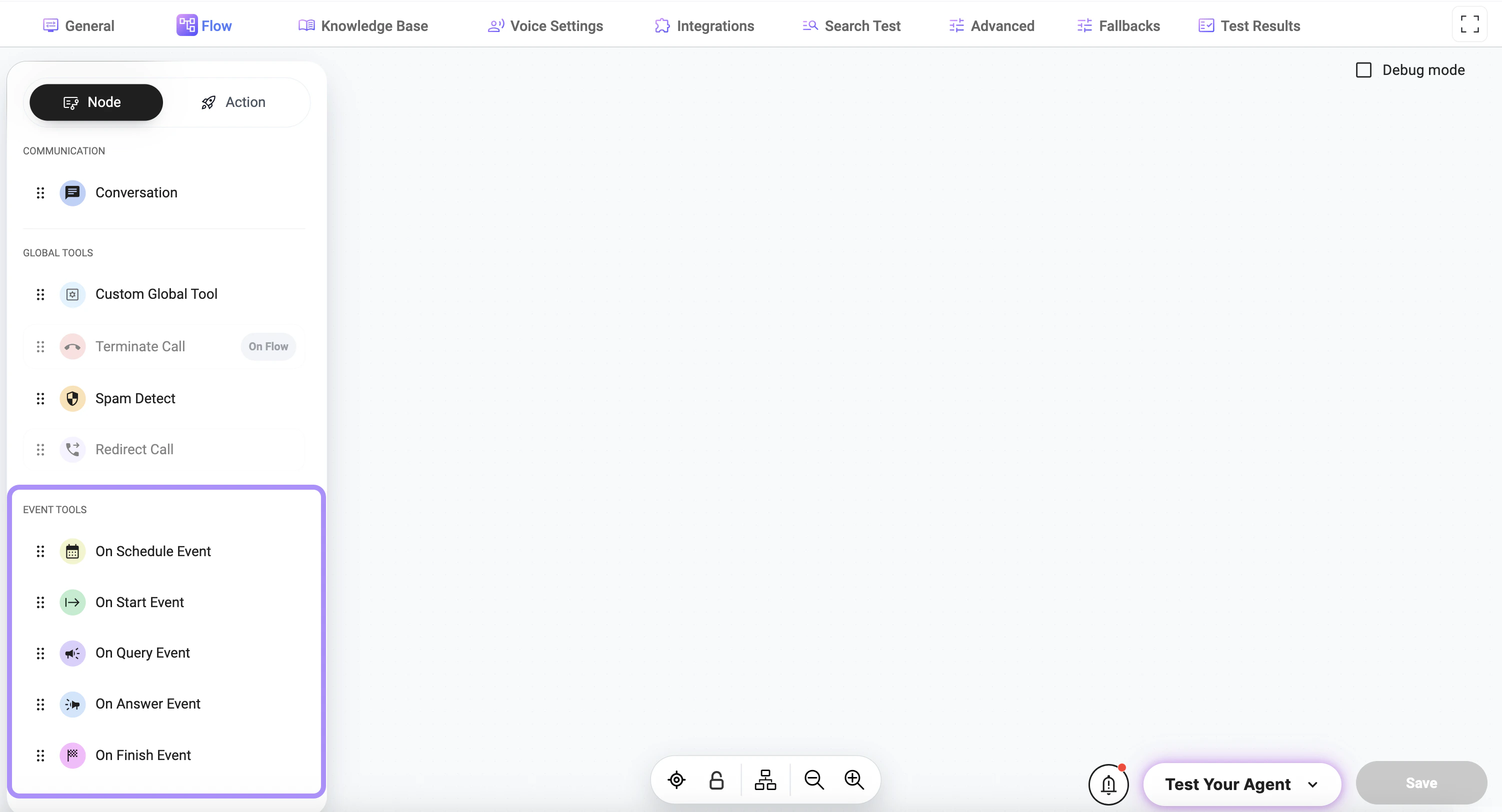 ## Adding Event Tools to a Node
Click the **+** button under the node to add a tool:
* select **Node**
* select an **Event Tool** from the list
Event tools are attached to a node and executed automatically when the corresponding event occurs.
***
## Available Event Types
* **On Start Event** — triggered when the interaction begins
* **On Query Event** — triggered when the user sends a message
* **On Answer Event** — triggered when the assistant responds
* **On Finish Event** — triggered when the interaction ends
* **On Schedule Event** — triggered at a scheduled time
***
## How It Works
* The event occurs during the interaction
* The corresponding event tool is triggered
* The configured action is executed
***
## Usage
Event tools are typically used for:
* logging or analytics
* triggering background processes
* sending notifications
* executing integrations
* handling lifecycle events
***
## Best Practices
* Use event tools only when automatic execution is required
* Avoid adding unnecessary event triggers
* Keep event logic simple and predictable
* Test event behavior across different scenarios
***
## Notes
* Event tools run automatically and do not require manual triggering
* Multiple event tools can be attached to a single node
* Proper configuration ensures correct timing and execution of actions
## Adding Event Tools to a Node
Click the **+** button under the node to add a tool:
* select **Node**
* select an **Event Tool** from the list
Event tools are attached to a node and executed automatically when the corresponding event occurs.
***
## Available Event Types
* **On Start Event** — triggered when the interaction begins
* **On Query Event** — triggered when the user sends a message
* **On Answer Event** — triggered when the assistant responds
* **On Finish Event** — triggered when the interaction ends
* **On Schedule Event** — triggered at a scheduled time
***
## How It Works
* The event occurs during the interaction
* The corresponding event tool is triggered
* The configured action is executed
***
## Usage
Event tools are typically used for:
* logging or analytics
* triggering background processes
* sending notifications
* executing integrations
* handling lifecycle events
***
## Best Practices
* Use event tools only when automatic execution is required
* Avoid adding unnecessary event triggers
* Keep event logic simple and predictable
* Test event behavior across different scenarios
***
## Notes
* Event tools run automatically and do not require manual triggering
* Multiple event tools can be attached to a single node
* Proper configuration ensures correct timing and execution of actions