> ## Documentation Index
> Fetch the complete documentation index at: https://docs.monobot.ai/llms.txt
> Use this file to discover all available pages before exploring further.
# My First Agent
# User Registration and AI Agent Creation
This guide explains how to register on Monobot CX, create and run your first AI agent.
 ## Registration Process
1. **Go to the Registration Page**
* Visit [Monobot CX](https://dev.monobot.ai/sign-up).
2. **Enter Your Details**
* Fill in your email and password.
* Confirm your password.
* Agree to the Terms and Conditions.
3) **Verify Your Email**
* After submitting the registration form, you will receive a verification link in your email.
* Click the link to verify your email address.
## Creating an Organization
1. **Log in to Your Account**
* After verifying your email, log in to Monobot CX.
2. **Create a New Organization**
* Navigate to the **Organizations** section in the sidebar.
* Click **Create New Organization**.
* Enter a name for your organization and click **Create**.
## Creating an AI Agent
1. **Navigate to AI Agents**
* Click on the **AI Agents** tab in the left sidebar.
* Click the **New Agent** button.
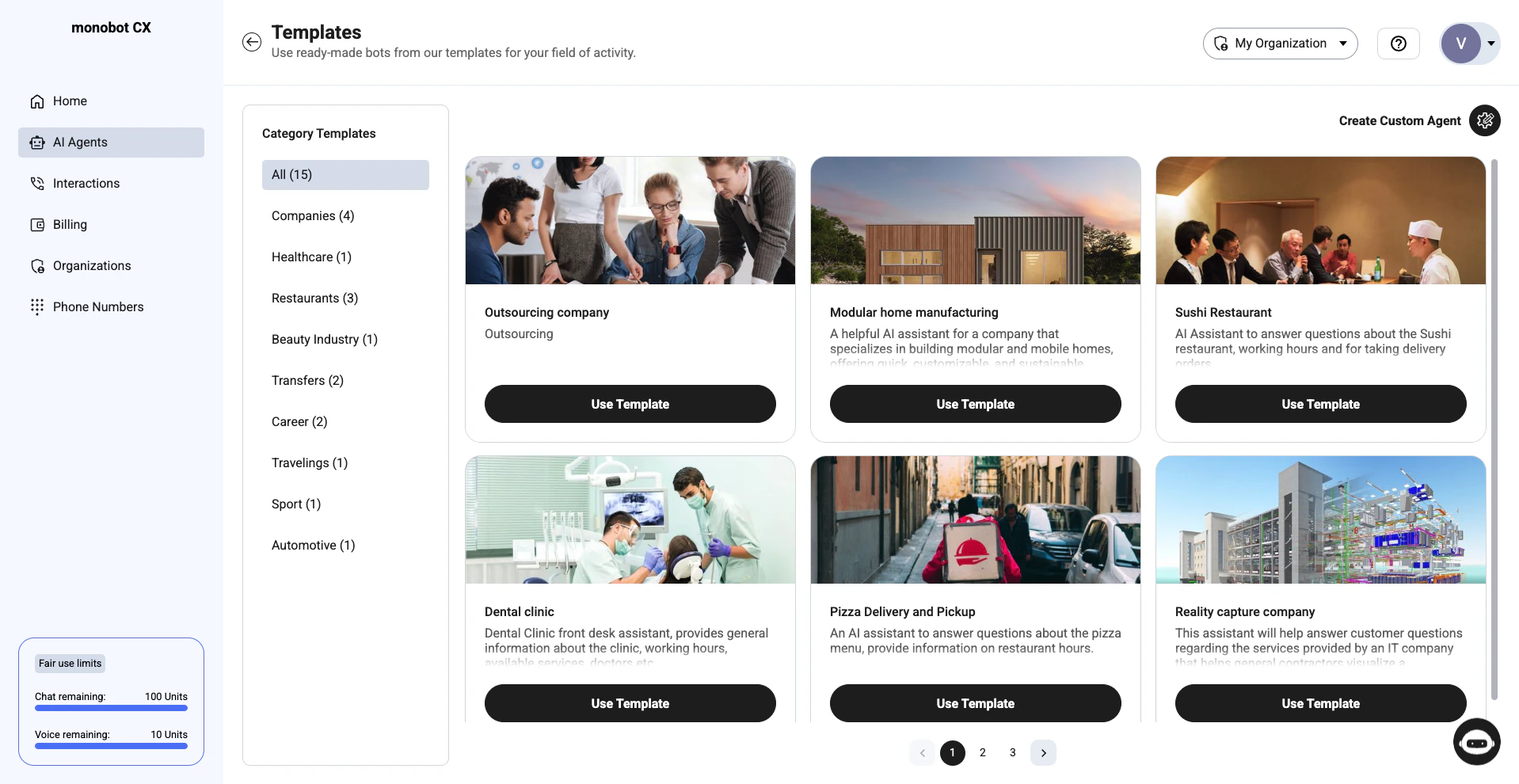
2) **Choose a Template or Create a Custom Agent**
* Select from pre-built templates or create a custom AI agent based on your needs.
## Registration Process
1. **Go to the Registration Page**
* Visit [Monobot CX](https://dev.monobot.ai/sign-up).
2. **Enter Your Details**
* Fill in your email and password.
* Confirm your password.
* Agree to the Terms and Conditions.
3) **Verify Your Email**
* After submitting the registration form, you will receive a verification link in your email.
* Click the link to verify your email address.
## Creating an Organization
1. **Log in to Your Account**
* After verifying your email, log in to Monobot CX.
2. **Create a New Organization**
* Navigate to the **Organizations** section in the sidebar.
* Click **Create New Organization**.
* Enter a name for your organization and click **Create**.
## Creating an AI Agent
1. **Navigate to AI Agents**
* Click on the **AI Agents** tab in the left sidebar.
* Click the **New Agent** button.
2) **Choose a Template or Create a Custom Agent**
* Select from pre-built templates or create a custom AI agent based on your needs.
 ## Running the AI Agent
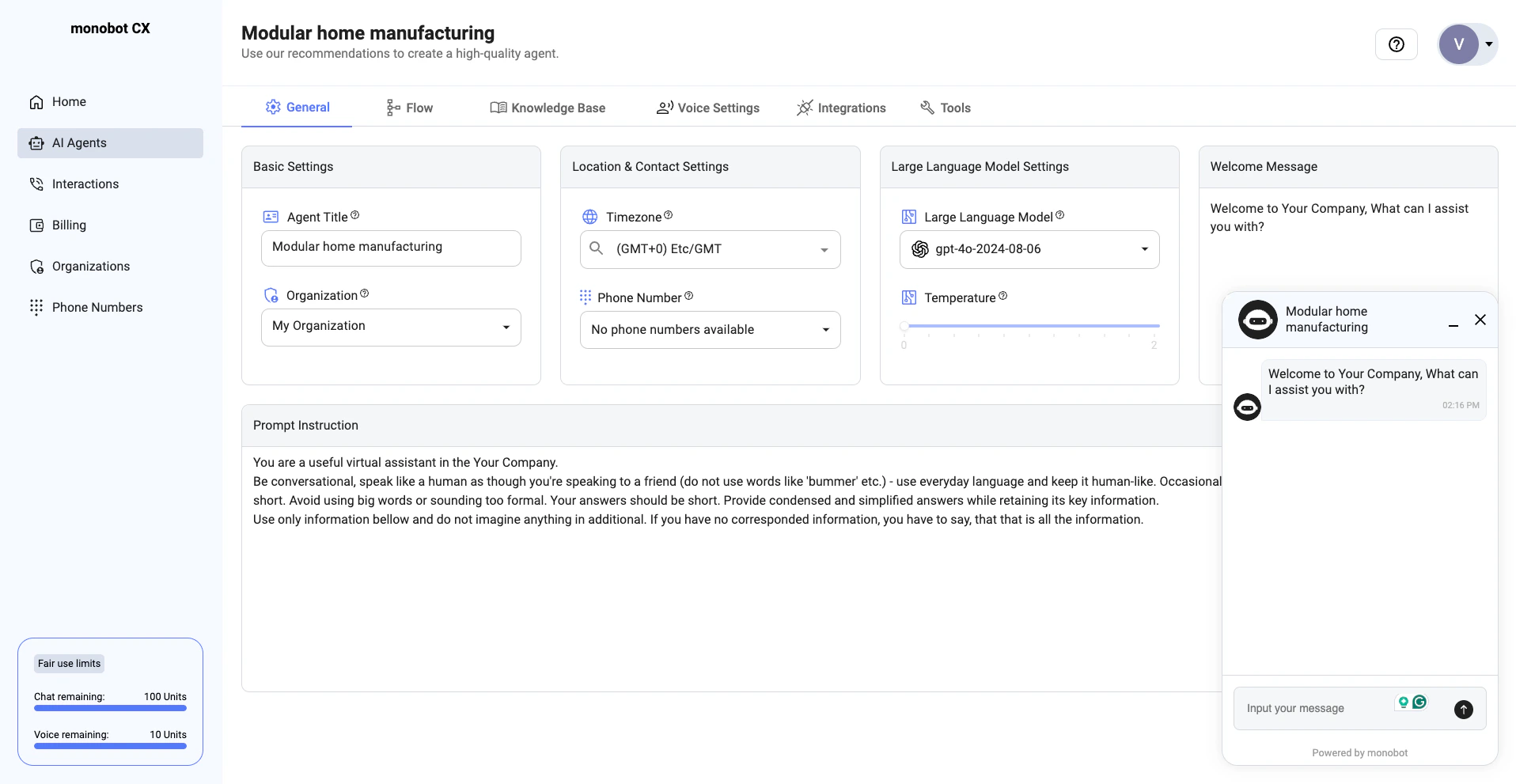
1. **Configure Your AI Agent**
* Set up the agent title.
* Provide a welcome message and prompt instructions.
2. **Start a Conversation**
* Click the **Play** button to test your AI agent.
* Use the **Chat** option to run the chat widget.
* Use the **Web Call** option to start a call interaction.
## Next Steps
* [Customize your AI agent settings.](/agent-settings/general)
* [Customize your Agent's Voice](/agent-settings/voice)
* [Work with Knowledge Base](/agent-settings/knowledge-base)
## Running the AI Agent
1. **Configure Your AI Agent**
* Set up the agent title.
* Provide a welcome message and prompt instructions.
2. **Start a Conversation**
* Click the **Play** button to test your AI agent.
* Use the **Chat** option to run the chat widget.
* Use the **Web Call** option to start a call interaction.
## Next Steps
* [Customize your AI agent settings.](/agent-settings/general)
* [Customize your Agent's Voice](/agent-settings/voice)
* [Work with Knowledge Base](/agent-settings/knowledge-base)