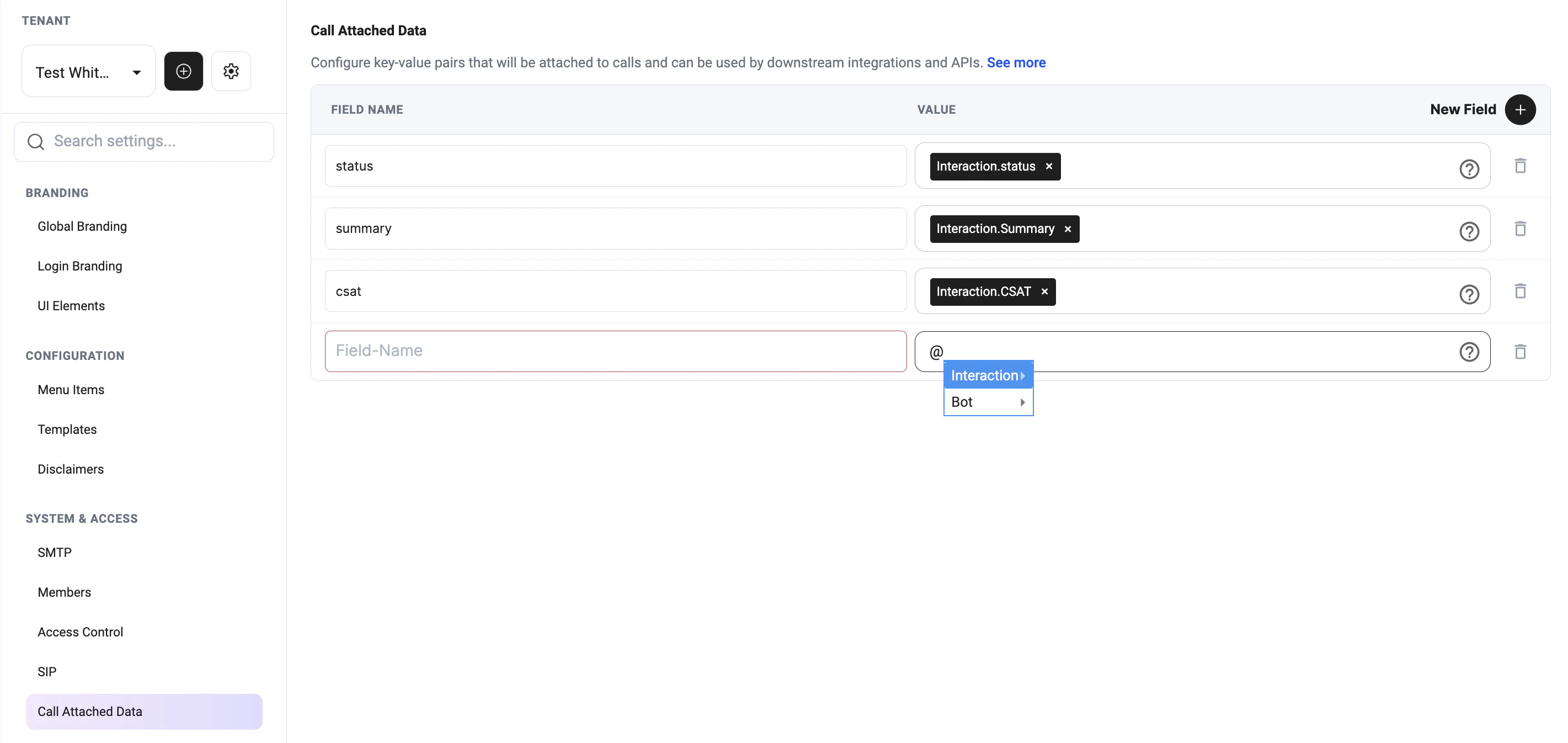
- Platform settings — CAD fields applied across the tenant.
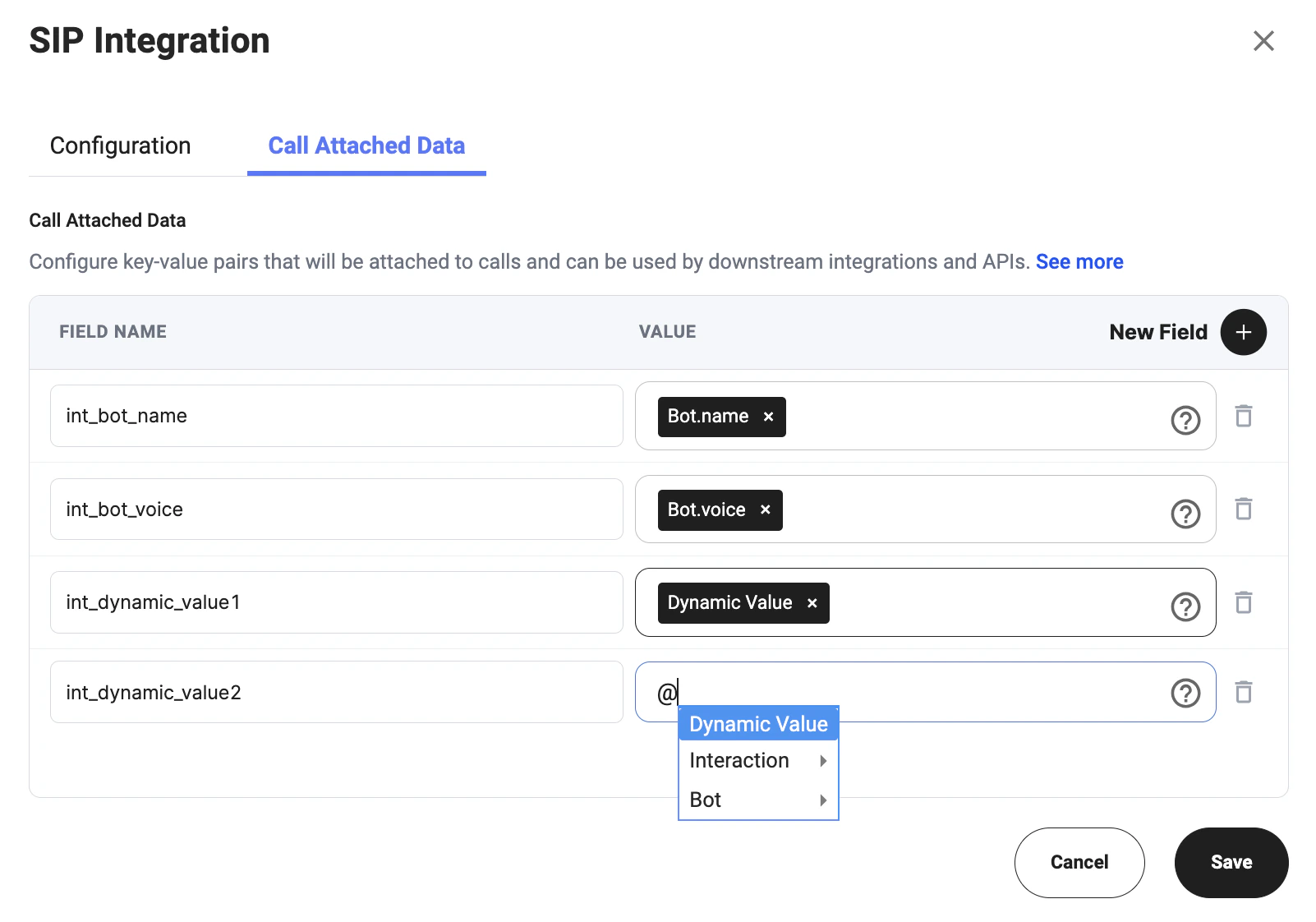
- Bot configuration — CAD fields applied only to interactions for the current bot.
All interactions in this tenant will use the CAD fields configured in Platform settings.
Platform-level CAD configuration
Platform Settings → System & Access → Call Attached Data
Configure CAD for a bot
Agent Configuration → Integrations → SIP Integration → Call Attached Data
- Open Bot configuration.
- Go to Integrations.
- Open SIP Integration.
- Select the Call Attached Data tab.
- Click New Field.
- Add the Field Name.
- Select or enter the Value.
- Click Save.
Only interactions in the current bot will use the CAD fields configured in the bot’s SIP Integration settings, together with CAD fields from Platform settings.
Field Name
The Field Name is the key that will be sent with the call. Use clear and consistent names so downstream systems can recognize the data correctly. Examples:statussummarycsatint_bot_nameint_bot_voiceint_dynamic_value1
Value
The Value is the data attached to the field. You can use available variables from the selector, such as:- Interaction variables
- Bot variables
- Dynamic Value variables
Interaction.statusInteraction.SummaryInteraction.CSATBot.nameBot.voiceDynamic Value
Example
Read CAD Fields
Call Attached Data (CAD) fields attached to interactions can be retrieved using API endpoints. Supported response formats:- JSON
- XML
Read CAD in JSON Format
Path Parameters
Response Example
Read CAD in XML Format
Body Parameters
Request Format
x-www-form-urlencoded
Response Example
Notes
- CAD fields are returned based on interaction-level and bot-level CAD configuration.
- Returned fields may vary between interactions depending on configured dynamic variables.
- JSON format is recommended for API integrations and external systems.
- XML format is primarily used for SIP and telephony workflows.
- Empty or undefined CAD fields may be omitted from the response.