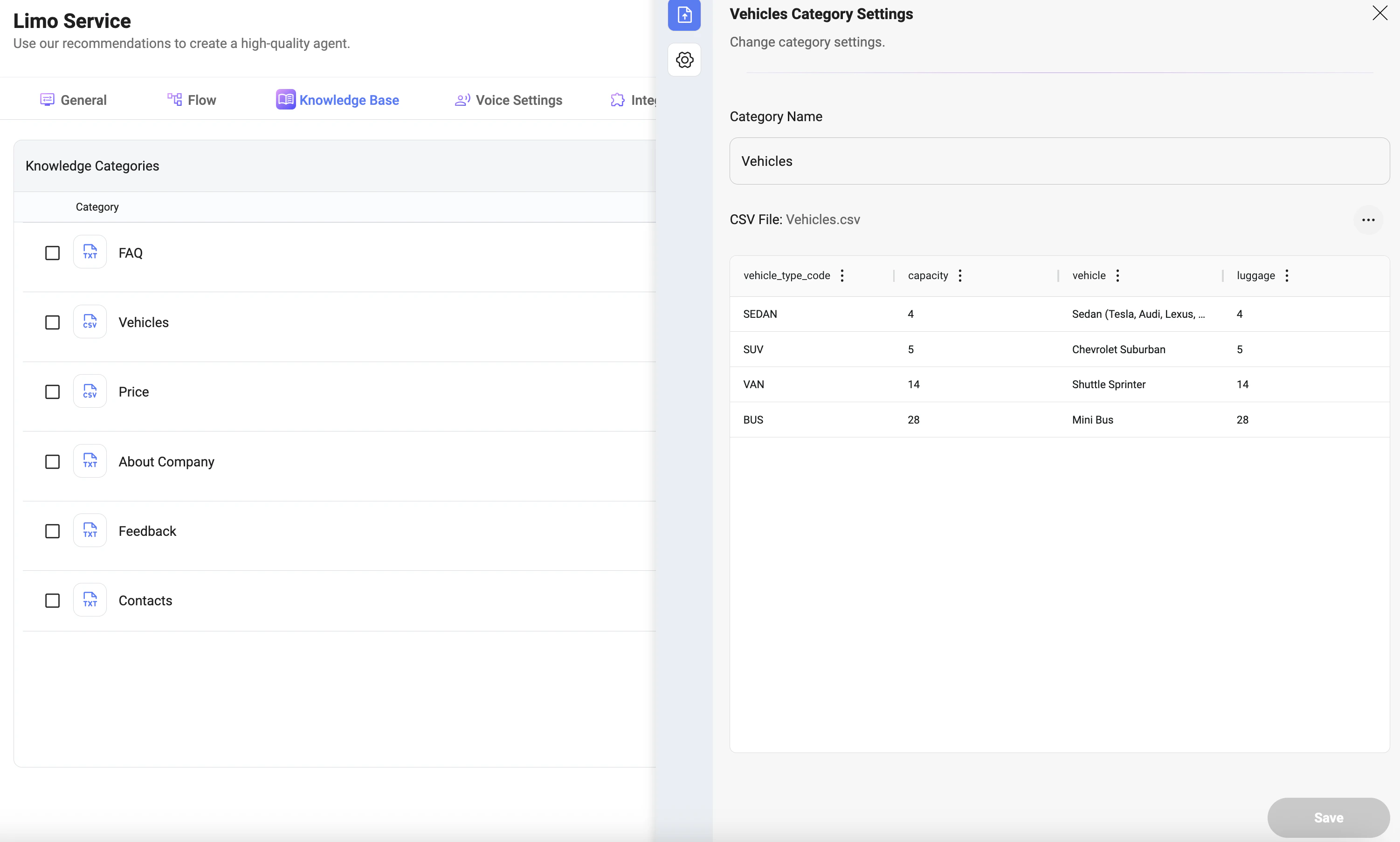
Knowledge Categories
- Knowledge Categories: Organize information into separate categories (e.g., FAQ, Vehicles, Pricing).
- Each category represents a specific type of data the agent can use during conversations.
- Categories can contain structured or unstructured data.
Creating a Category
- Enter a name in Category Name.
- Click to create the category.
- Add files to the category using supported formats.
Supported File Types
You can create or upload different types of files depending on your use case:- CSV: Structured data (e.g., pricing tables, vehicles, services).
- TXT: Plain text content (e.g., FAQs, company info, policies).
- JSON: Structured data with flexible schema for advanced use cases.
- Web Page: Import content directly from a URL.
- PDF (upload only): Documents such as manuals or policies.
Importing Files
- Drag and drop files into the upload area or click to upload.
- Supported formats: PDF, JSON, TXT, CSV.
- Maximum file size: 50MB.
Preview Data
Preview Data allows you to inspect the processed content stored in a category after files are uploaded and indexed. Supported preview formats include:- CSV files — displayed in a table format with rows and columns.
- JSON files — displayed as structured JSON data.
- PDF files — displayed as extracted text content.
- TXT and other text-based files — displayed as plain text.
- Verify that data was uploaded correctly
- Review extracted content before it is used by the agent
- Check column structure and values
- Ensure formatting is clean and usable by the agent
Text Processing Settings
For text-based files, the preview reflects the configured chunking settings:- Maximum Length — Defines the maximum size of each text chunk created during processing.
- Chapter Overlap — Specifies how much content is shared between consecutive chunks to preserve context between chunks.
- Split By — Determines how content is divided into chunks (for example, by paragraphs, chapters, sentences, or custom separators).
Instructions
- Instructions define how the agent should interpret and use data from this category.
- You can provide additional guidance to improve how the model retrieves and responds with this data.
- Explain what the data represents (e.g., “This file contains vehicle types and capacity”)
- Add constraints (e.g., “Use only exact matches for vehicle type”)
- Guide response formatting (e.g., “Always include capacity and luggage in the answer”)
Category Configuration
- Category Name: Defines how the category is labeled and referenced inside the agent.
- Data Source: Upload and manage files associated with the category.
- CSV Structure:
- Columns represent attributes (e.g., vehicle type, capacity, luggage)
- Rows represent individual records
- Used for precise lookups and filtering
Advanced Category & Document Settings
The Knowledge Base provides additional configuration options to fine-tune how data is processed and retrieved.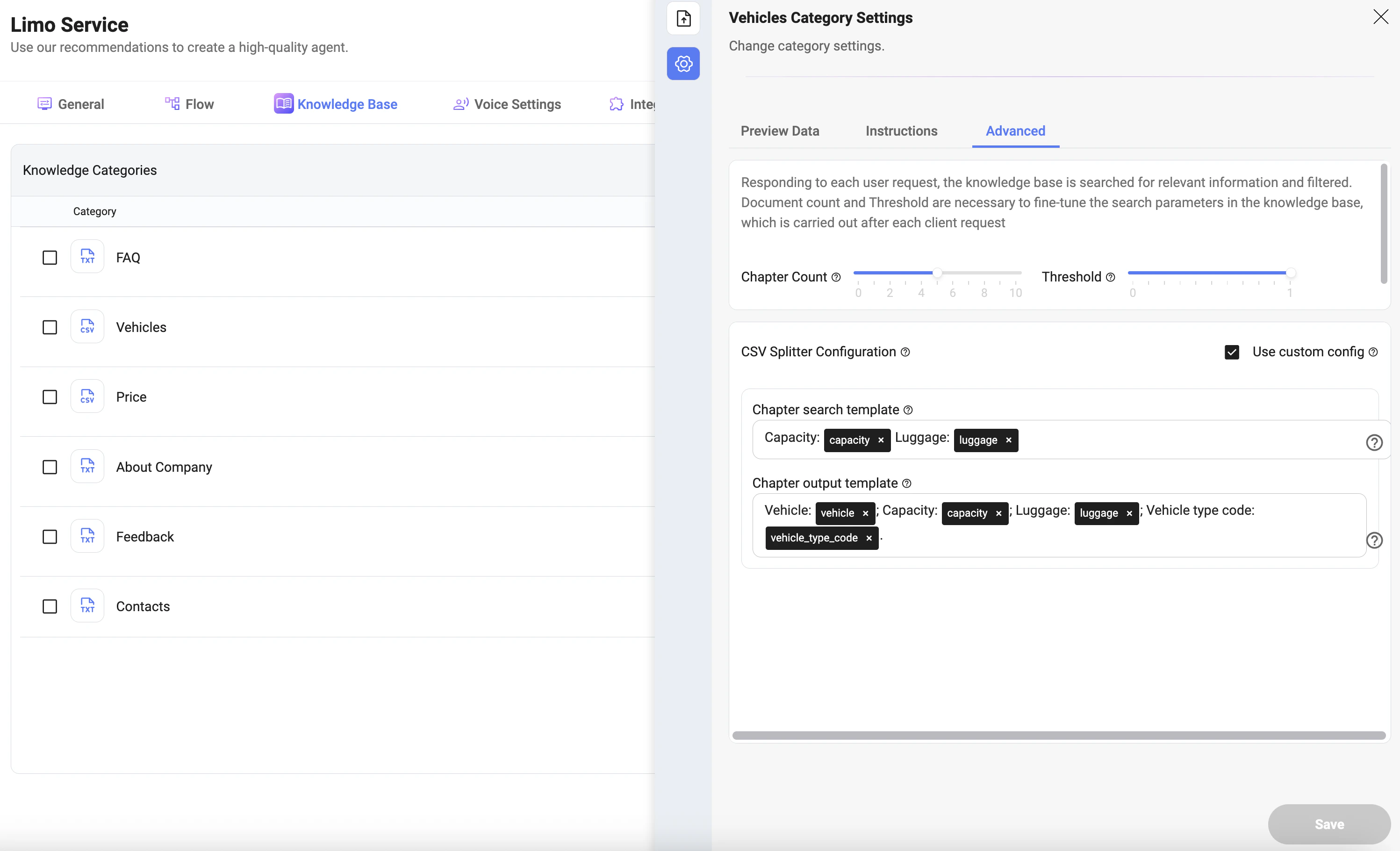
Search Configuration
-
Chapter Count:
Defines how many relevant data chunks are returned per request.
Higher values increase context but may introduce noise. -
Threshold:
Controls how strictly results are filtered by relevance.
Higher = stricter matching (more precise results), lower = broader results (less strict).
CSV Splitter Configuration
Used to control how structured data (CSV) is interpreted and returned.- Use Custom Config:
Enables manual control over how CSV data is processed.
Chapter Search Template
- Defines which fields are used to search and match data.
- Example:
- Capacity
- Luggage
Chapter Output Template
- Defines how the data is formatted and returned to the model.
- Example:
- Vehicle
- Capacity
- Luggage
- Vehicle type code
How It Works
- User sends a request
- The system searches the Knowledge Base
- Data is filtered using Threshold
- Top results are selected using Chapter Count
- CSV data is processed using Search Template
- Final output is formatted using Output Template
Best Practices
- Use CSV or JSON for structured, filterable data.
- Use TXT or PDF for descriptive content.
- Keep categories focused and well-organized.
- Use Chapter Count (1–3) for precise results.
- Use Threshold (0.7–1) for strict matching.
- Add Instructions to guide the model behavior.
- Always verify data using Preview Data before deploying.
Notes
- The Knowledge Base is the agent’s source of truth.
- The agent should rely only on this data when strict instructions are used.
- Poorly structured or outdated data may lead to incorrect responses.
- Advanced settings significantly impact response accuracy and relevance.